
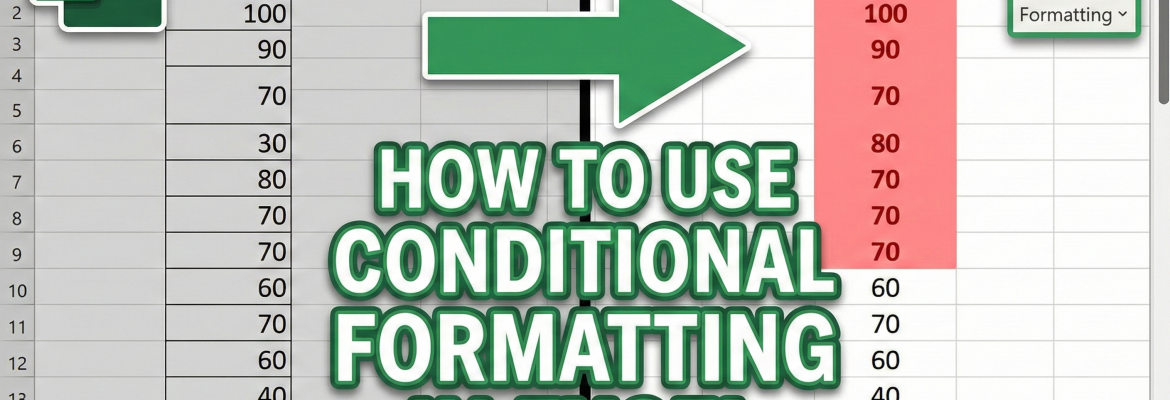
How to Use Conditional Formatting in Excel
Excel is one of the most powerful tools for data work. But large data tables can look boring and confusing if everything looks the same. This is where conditional formatting in Excel becomes very useful. It helps you highlight important data automatically based on rules you set.
In this blog, you will learn how to use conditional formatting in Excel step by step, even if you are a beginner. This guide is based on real Excel usage experience and is written in simple language so anyone can understand.
What Is Conditional Formatting in Excel?
Conditional formatting is a feature in Microsoft Excel that changes the color, font, or style of a cell based on a condition. The condition can be a value, text, date, or formula.
For example:
- Highlight sales above ₹50,000
- Show low marks in red
- Highlight duplicate values
- Color upcoming dates automatically
Learning this feature is an important part of Excel basics conditional formatting, especially for students, office workers, and data professionals.
Why Should You Learn Conditional Formatting?
Conditional formatting helps you:
- Read data faster
- Find errors easily
- Analyze trends quickly
- Make reports more professional
If you are starting your Excel journey, Learn Excel conditional formatting early to save time and improve accuracy in your work.
Where Is Conditional Formatting in Excel?
You can find conditional formatting by following these steps:
- Select the data (cells)
- Go to the Home tab
- Click on Conditional Formatting
From here, you will see many options to apply different rules.
Types of Conditional Formatting in Excel
Excel offers several types of conditional formatting options. Let’s understand them one by one.
1. Highlight Cells Rules
This option highlights cells based on values.
Common examples:
- Greater than
- Less than
- Between
- Equal to
- Text that contains
Example:
Highlight all sales above ₹20,000 in green.
This is one of the most used conditional formatting rules in daily office work.
2. Top/Bottom Rules
This rule helps you find top or bottom values easily.
You can highlight:
- Top 10 values
- Bottom 10 values
- Above average
- Below average
This feature is very helpful when analyzing performance data or marksheets and is a key part of Excel basics conditional formatting.
3. Data Bars
Data bars add colored bars inside cells based on values.
Benefits:
- Easy comparison
- Visual data analysis
- Clean dashboard look
Data bars are widely used in reports and dashboards. They are also part of advanced Excel conditional formatting tips and tricks.
4. Color Scales
Color scales use different colors to show value ranges.
For example:
- Green for high values
- Yellow for medium values
- Red for low values
This makes data trends very easy to understand at a glance and helps when you Learn Excel conditional formatting for analytics.
5. Icon Sets
Icon sets add symbols like arrows, stars, or flags.
Examples:
- Green arrow for growth
- Red arrow for decline
- Yellow symbol for average
These are commonly used in performance tracking and KPI reports.
How to Create Your Own Conditional Formatting Rule
Custom rules give you more control.
Steps:
- Select your data
- Go to Conditional Formatting
- Click New Rule
- Choose Use a formula
- Enter your formula
- Set the format
Custom conditional formatting rules are useful when working with complex data.
Conditional Formatting Using Formulas
You can use formulas like:
=A1>50000=TODAY()>A1=A1="Yes"
Formula-based formatting is one of the most powerful Excel conditional formatting tips and tricks used by professionals.
Managing and Editing Rules
To manage existing rules:
- Go to Conditional Formatting
- Click Manage Rules
- Edit, delete, or change priority
Knowing how to manage rules helps you avoid confusion and errors.

Common Mistakes to Avoid
- Applying formatting to the wrong range
- Forgetting to lock cell references ($)
- Using too many rules at once
- Not checking rule priority
Avoiding these mistakes will improve your Excel skills faster.
Practical Uses of Conditional Formatting
Conditional formatting is used in:
- Sales reports
- Attendance sheets
- Expense tracking
- Student result analysis
- HR dashboards
These real-world uses show why Excel basics conditional formatting is an essential skill.
Learn Conditional Formatting with Expert Guidance
If you want to master Excel from basics to advanced level, expert training makes learning easier and faster.
Why Choose Innozant Institute?
Innozant Institute is a trusted training center known for:
- Practical Excel training
- Industry-expert trainers
- Real-time projects
- Beginner-friendly teaching
- Job-oriented courses
At Innozant Institute, students Learn Excel conditional formatting through hands-on practice, real business examples, and clear explanations.
Read Also : Best MIS Training in Noida With Placement

Final Thoughts
Conditional formatting in Excel is a powerful tool that makes your data smart and meaningful. Whether you are a student, job seeker, or working professional, mastering this feature will improve your productivity.
Start with basic rules, practice regularly, and explore advanced options. With proper guidance and training from Innozant Institute, you can confidently apply conditional formatting rules and use advanced Excel conditional formatting tips and tricks in real projects.
FAQs – How to Use Conditional Formatting in Excel
1. What is conditional formatting in Excel?
Conditional formatting is an Excel feature that automatically changes the color, font, or style of cells based on specific conditions. It helps users highlight important data, find trends, and analyze information easily.
2. Is conditional formatting difficult to learn for beginners?
No, it is very easy to learn. Anyone who knows basic Excel can start using it. With regular practice, beginners can quickly understand Excel basics conditional formatting and apply it in real work.
3. Can I use formulas in conditional formatting?
Yes, Excel allows you to use formulas while creating conditional formatting rules. Formula-based rules help apply formatting based on custom logic, making reports more dynamic and accurate.
4. Where is conditional formatting mostly used?
Conditional formatting is widely used in sales reports, attendance sheets, exam results, dashboards, and financial analysis. It helps users visually understand data without manual checking.
5. Where can I learn conditional formatting in Excel professionally?
You can learn Excel conditional formatting and other advanced Excel skills at Innozant Institute, where expert trainers provide practical, job-oriented training with real-time examples.
Check out our YouTube channel : innozant
Read Also : Best MIS Training in Noida With Placement
