
Excel Formulas List with Examples
If you work with data, reports, or numbers, learning Excel formulas can make your life much easier. Microsoft Excel is one of the most powerful tools for data analysis, calculations, and reporting. In this blog, we’ll go through the Excel formulas list with examples so you can easily understand how they work.
We’ll also cover Excel basic formulas, advanced Excel formulas, and important functions that every beginner and professional should know.
1. Why Learn Excel Formulas?
Excel formulas and functions help you automate calculations, save time, and reduce errors. Whether you’re a student, accountant, data analyst, or business owner, knowing the important Excel formulas can help you handle data efficiently.
Download PDF : 👉 Excel Shortcuts Cheat Sheet
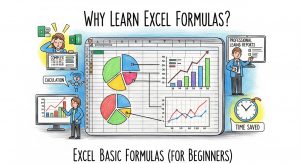
2. Excel Basic Formulas (For Beginners)
Let’s start with some of the most common and useful Excel basic formulas that you’ll use every day.
| Formula | Description | Example |
| =SUM(A1:A5) | Adds all numbers in a range | Adds values from cell A1 to A5 |
| =AVERAGE(A1:A5) | Finds the average of numbers | Average of A1 to A5 |
| =MIN(A1:A5) | Finds the smallest number | Smallest value in range |
| =MAX(A1:A5) | Finds the largest number | Largest value in range |
| =COUNT(A1:A5) | Counts the number of cells with numbers | Counts numeric cells |
| =TODAY() | Shows the current date | Displays today’s date automatically |
| =NOW() | Shows current date and time | Displays date and time |
These are the foundation of your Excel formulas and shortcuts list, and they make basic data work quick and easy.
3. Text Formulas in Excel
Excel is not just for numbers — it can also handle text. Here are some important Excel formulas for working with text:
| Formula | Use | Example |
| =CONCATENATE(A1, ” “, B1) | Joins text from two cells | Joins first name and last name |
| =LEFT(A1, 4) | Extracts first few characters | First 4 characters of text |
| =RIGHT(A1, 3) | Extracts last few characters | Last 3 characters of text |
| =LEN(A1) | Counts number of characters | Finds text length |
| =TRIM(A1) | Removes extra spaces | Cleans unwanted spaces |
These are often used in data cleaning and text formatting tasks.
4. Logical Formulas
Logical formulas are very helpful when you want to test conditions.
| Formula | Purpose | Example |
| =IF(A1>50, “Pass”, “Fail”) | Checks a condition | Shows “Pass” if A1 > 50 |
| =AND(A1>10, B1<100) | Tests multiple conditions | True if both are correct |
| =OR(A1>10, B1<5) | Returns TRUE if any condition is true | Checks multiple values |
These Excel formulas and functions are great for reports and dashboards.
5. Lookup and Reference Formulas
These are the advanced Excel formulas used to search or extract data from a table.
| Formula | Purpose | Example |
| =VLOOKUP(A2, B2:D10, 3, FALSE) | Finds value from a table | Looks for data in a column |
| =HLOOKUP(A2, A1:D4, 2, FALSE) | Looks up value horizontally | Finds matching data in a row |
| =INDEX(A2:A10, 5) | Returns value from specific position | Gets 5th item from list |
| =MATCH(“John”, A2:A10, 0) | Finds position of value | Returns position of “John” |
These are a must-have in your Excel formulas cheat sheet.
6. Math and Financial Formulas
When dealing with business or finance data, these formulas come in handy:
| Formula | Purpose | Example |
| =ROUND(A1, 2) | Rounds number to 2 decimals | 23.456 → 23.46 |
| =SQRT(A1) | Finds square root | Square root of A1 |
| =PMT(rate, nper, pv) | Calculates loan payment | For EMI or interest calculation |
These advanced Excel formulas are widely used in budgeting and accounting.

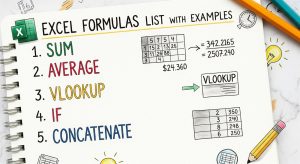
7. Excel Formulas Cheat Sheet (Quick Recap)
Here’s a mini Excel formulas cheat sheet for easy revision:
- SUM → Add numbers
- AVERAGE → Find mean
- IF → Check conditions
- VLOOKUP → Search in table
- CONCATENATE → Join text
- ROUND → Round off numbers
- TODAY → Show current date
Keep this Excel formulas and shortcuts list handy to work faster and smarter in Excel.
Final Thoughts
Learning Excel is like learning a new language — the more you practice, the more fluent you become. Whether you’re using Excel basic formulas or exploring advanced Excel formulas, knowing how to combine them can help you become a true Excel expert.
So, start experimenting today and make your own personalized Excel formulas cheat sheet for everyday use!.
FAQs Of Excel Formulas List
- How can I remember Excel formulas easily?
Start with basic formulas and practice them daily. Use an Excel formulas cheat sheet for quick help. - What are the most important Excel formulas to learn first?
Start with SUM, AVERAGE, IF, and VLOOKUP — these are the important Excel formulas for beginners. - Can I use Excel formulas on mobile?
Yes, Excel mobile supports most Excel formulas and functions just like the desktop version. - Are there shortcuts for Excel formulas?
Yes! You can find many in the Excel formulas and shortcuts list — like pressing Alt + = for AutoSum. - What are advanced Excel formulas used for?
They are used for data analysis, reports, and automating tasks — like INDEX-MATCH and nested IFs.

Check out our YouTube channel : innozant
Read Also : Business Analyst Course in Noida
