

Top 10 Excel Hacks You Need to Learn in 2026
If you think Excel is just for boring data entry, you are missing its real power.
In 2026, Microsoft Excel shortcuts and smart tricks can save hours of work and make you stand out.
Whether you are a student or just starting your career, learning the right Excel tips and tricks can change how you work. Let’s explore the top 10 Excel hacks that are simple, practical, and powerful.
1. Use Flash Fill to Save Time
Flash Fill automatically fills data based on patterns.
Example:
If you have full names in one column and want first names, just type the first result. Excel will suggest the rest.
👉 Press Ctrl + E to apply Flash Fill.
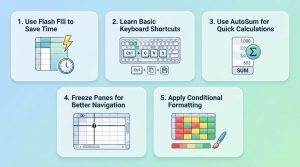
2. Learn Basic Keyboard Shortcuts
Using a mouse slows you down. Keyboard shortcuts make you faster.
Some must-know shortcuts:
- Ctrl + C / V – Copy/Paste
- Ctrl + Z – Undo
- Ctrl + Arrow Keys – Jump across data
- Ctrl + Shift + L – Apply filters
These Microsoft Excel shortcuts are essential for speed.
3. Use AutoSum for Quick Calculations
Don’t waste time typing formulas manually.
👉 Press Alt + = to instantly sum numbers.
Use Case:
Students calculating marks or business owners tracking daily sales.
4. Freeze Panes for Better Navigation
When working with large data, headers disappear.
👉 Go to View → Freeze Panes
Now your headings stay visible while scrolling.
5. Apply Conditional Formatting
This feature highlights important data automatically.
Example:
- Highlight top scores
- Show low sales in red
- Mark duplicate values
👉 Go to Home → Conditional Formatting
This is one of the most useful Excel tips and tricks.
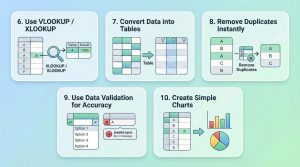
6. Use VLOOKUP / XLOOKUP
These are powerful Excel formulas for beginners.
They help you find data from another table.
Example:
Find student marks using roll numbers.
👉 Use:
- VLOOKUP (basic)
- XLOOKUP (advanced and better)
7. Convert Data into Tables
Tables make your data clean and easy to manage.
👉 Select data → Press Ctrl + T
Benefits:
- Easy filtering
- Better formatting
- Automatic expansion
8. Remove Duplicates Instantly
Duplicate data can create errors.
👉 Go to Data → Remove Duplicates
Use Case:
Cleaning email lists or customer records.
9. Use Data Validation for Accuracy
Avoid wrong entries by setting rules.
👉 Go to Data → Data Validation
Example:
- Only allow numbers
- Create dropdown lists
This improves your Excel skills for jobs.
10. Create Simple Charts
Visual data is easier to understand.
👉 Select data → Go to Insert → Chart
Use:
- Bar charts
- Pie charts
- Line graphs
Example:
Students can show project data, businesses can track growth.
Step-by-Step Guide: Create a Simple Excel Report
Here’s a quick way to apply these hacks:
- Enter your data (sales, marks, etc.)
- Convert it into a table (Ctrl + T)
- Use AutoSum to calculate totals
- Apply conditional formatting to highlight results
- Create a chart for visualization
- Use filters to analyze specific data
This simple process can turn basic data into a professional report.
Real-Life Use Cases
- Students: Track study schedules, marks, and projects
- Business Owners: Manage expenses, sales, and inventory
- Job Seekers: Improve Excel skills for jobs and stand out in interviews
Why Learning Excel in 2026 is Important
Excel is still one of the most demanded tools in jobs.
Companies expect basic to advanced knowledge of Excel formulas for beginners and beyond.
If you master these hacks, you can:
- Work faster
- Reduce errors
- Make better decisions

Where to Learn Excel Properly?
If you want to go beyond basic hacks and learn Excel in a structured way, consider joining Innozant Institute.
They offer beginner-friendly training with:
- Practical projects
- Real-world examples
- Career-focused Excel training
It’s a great place for students and beginners who want to build strong Excel skills.
Conclusion
Excel is not hard—you just need the right approach.
These Top 10 Excel Hacks You Need to Learn in 2026 can help you save time, improve accuracy, and boost productivity.
Start with small steps:
- Learn shortcuts
- Practice formulas
- Apply real-life examples
Ready to level up? Watch our step-by-step video guide on these 10 Excel hacks over on INNOZANT—don’t forget to hit the bell icon for the latest updates!

Leave A Comment
You must be <a href="https://www.innozant.com/wp-login.php?redirect_to=https%3A%2F%2Fwww.innozant.com%2Ftop-10-excel-hacks-2026%2F">logged in</a> to post a comment.